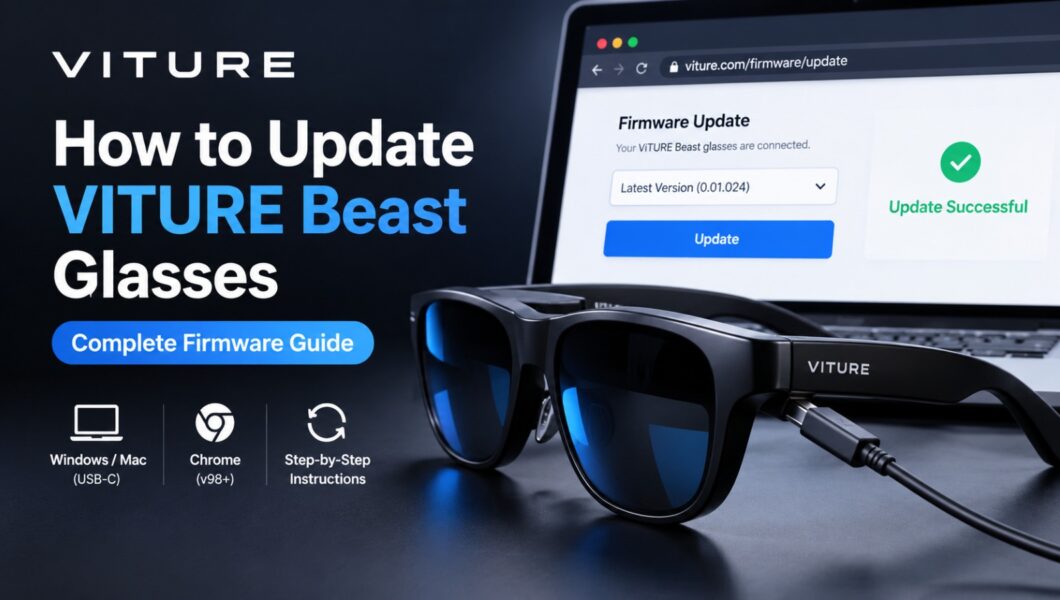
Connect your VITURE Beast glasses to a Windows PC or Mac using USB-C, open VITURE’s official firmware updater in Google Chrome, select the firmware version you want, and wait until the update is complete. Do not disconnect the glasses during the process. After updating, VITURE recommends recalibrating the IMU.
Why Update Your VITURE Beast?
VITURE recommends keeping the glasses’ firmware up to date for a better experience and access to the latest features. Each firmware release comes with release notes, so you can see exactly what changed before you install it. Beast owners have also seen features and tracking improvements arrive through firmware updates after launch, so it is worth checking for updates regularly.
What You Need Before You Start
- A Windows PC or Mac with a USB-C port
- The USB-C cable included with your glasses
- Google Chrome, version 98 or later (required by VITURE’s updater)
- No other app using the glasses while you update
Step-by-Step: How to Update VITURE Beast Glasses
- Open Google Chrome and make sure it is version 98 or later.
- Close other apps that might be using the glasses before you connect them.
- Connect the glasses to your computer’s USB-C port with the included cable.
- Open VITURE’s official firmware update page (viture.com/firmware/update) and connect your glasses when prompted.
- Check the detected details. The page shows the connected glasses and their current firmware version.
- Choose a firmware version from the drop-down menu. Each version shows its release date and release notes.
- Click Update and keep the page open. Do not unplug the glasses or refresh the page.
- Wait for the “Update Successful” message, then unplug the glasses.
- Recalibrate the IMU using VITURE’s calibration page, as VITURE recommends after every firmware update.
Warning: VITURE says not to unplug the glasses or refresh the page during the update. Interrupting a firmware update can cause it to fail.
How to Choose the Right Firmware Version
The updater lets you pick a version from a drop-down list. In most cases, the newest release is the right choice. Before installing, read the release notes for that version on VITURE’s firmware release notes page so you know which fixes and features it includes.
After the Update
- Recalibrate the IMU. VITURE recommends this after updating, particularly if head tracking feels off.
- Restart your usual setup. Reconnect the glasses to your phone, console, or computer and confirm everything works as normal.
Troubleshooting: If the Update Fails
VITURE’s firmware page points users to the troubleshooting section of the Beast page in VITURE Academy if an update fails. In addition, these general checks resolve many USB update problems:
| Problem | What to try |
| Glasses not detected | Confirm Chrome is version 98 or later, and close any app that may be using the glasses |
| Connection drops | Try a different USB-C port and make sure the cable is fully connected |
| Page froze or was refreshed mid-update | Reconnect the glasses and start the update again |
| Tracking feels off after updating | Recalibrate the IMU |
The first row and the IMU advice come from VITURE’s own instructions. The remaining rows are general USB troubleshooting tips, not VITURE-specific guidance.
If the problem continues, contact VITURE support through the official website.
FAQs
How do I update my VITURE Beast glasses?
Connect them to a Windows PC or Mac with USB-C, open VITURE’s firmware updater in Chrome 98 or later, select a firmware version, and wait for the “Update Successful” message before unplugging.
Which browser do I need?
Google Chrome, version 98 or later.
Can I stop the update halfway?
No. VITURE says not to unplug the glasses or refresh the page during the update.
Do I need to calibrate the glasses after updating?
VITURE recommends calibrating the IMU after a firmware update.
Where can I see what a firmware version changes?
VITURE publishes release notes for each firmware version, and the updater shows the release date and notes when you select a version.
What if my update fails?
Check your Chrome version, close other apps using the glasses, reconnect, and try again. VITURE also provides a troubleshooting section in its Academy pages for the Beast.
Final Thoughts
Updating the VITURE Beast takes only a USB-C cable, a computer and Chrome. Read the release notes, keep the glasses connected until the success message appears, and recalibrate afterwards. Always follow VITURE’s current on-screen instructions, as the updater and supported features can change between releases.