You’ve just unboxed your new Beats, or you’re moving them to a different phone, and you want music playing right now. The good news: pairing usually takes less than a minute. This guide walks you through every step for iPhone, Android, Mac, Windows PC, and TV, and shows what to do if something goes wrong.
Introduction
Beats are built to connect fast, especially with Apple devices and Android phones that support one-tap pairing. Whether you own over-ear headphones like the Beats Studio Pro, on-ear Solo 4 headphones, or earbuds like the Beats Fit Pro and Powerbeats Pro 2, the process follows one pattern: put your Beats in pairing mode, then select them on your device.
Before you start, you’ll need:
- Your Beats headphones or earbuds (and the charging case, if they have one)
- The device you want to connect, such as a phone, tablet, or computer
- A few seconds of patience
Before You Begin: Quick Prep
A little preparation prevents most pairing problems.
- Charge your Beats. A very low battery can make pairing fail or drop out. If yours are nearly empty, charge them for at least 10 to 15 minutes first.
- Turn on Bluetooth on your device. On a phone, swipe down from the top of the screen to open quick settings, or open Settings and switch Bluetooth on. On a computer, check the Bluetooth setting in your system menu.
- Know your model. The pairing button sits in a different place on each model. The model name is usually printed on the headphones, the box, or inside the Beats app.
- Stay close. Keep your Beats and your device within about 30 feet (9 meters) of each other, away from other Bluetooth devices, microwaves, and wireless routers.
Put Your Beats in Pairing Mode
Pairing mode makes your Beats visible to nearby devices. The button depends on your model, but the idea is the same: press and hold until the light flashes (or, on Beats Solo Buds, until you hear a tone).
Good to know: Many brand-new Beats go into pairing mode automatically the first time you turn them on. The Beats Solo 4, for example, does this on its first power-up.
| Model | How to enter pairing mode |
|---|---|
| Beats Studio Pro | Press and hold the system button on the right earcup. |
| Beats Solo 4 | Press and hold the power button on the right earcup. |
| Beats Fit Pro, Beats Studio Buds +, Powerbeats Fit, Powerbeats Pro 2 | Put the earbuds in the charging case, open the lid, then press and hold the system button on the case. |
| Beats Solo Buds | Put the earbuds in the case, open the lid, then press and hold the button above the “b” logo on either earbud until a tone repeats. |
| Beats Flex | Press and hold the power button on the right control module. |
| Beats 360 | Press and hold the power button on the back of the left earcup. |
| Beats Pill (speaker) | Press and hold the power button until a tone repeats. |
When the light flashes white (or a tone plays on Solo Buds), your Beats are ready to pair. If nothing happens, release the button and try again, holding a little longer.
Own an older model such as the Solo 3 or Studio 3? The steps are similar, but the button locations differ. Check Beats Support for your exact model.
Pair Beats With an iPhone or iPad
Apple devices offer the fastest pairing.
One-tap pairing:
- Open Settings > Bluetooth and make sure Bluetooth is on.
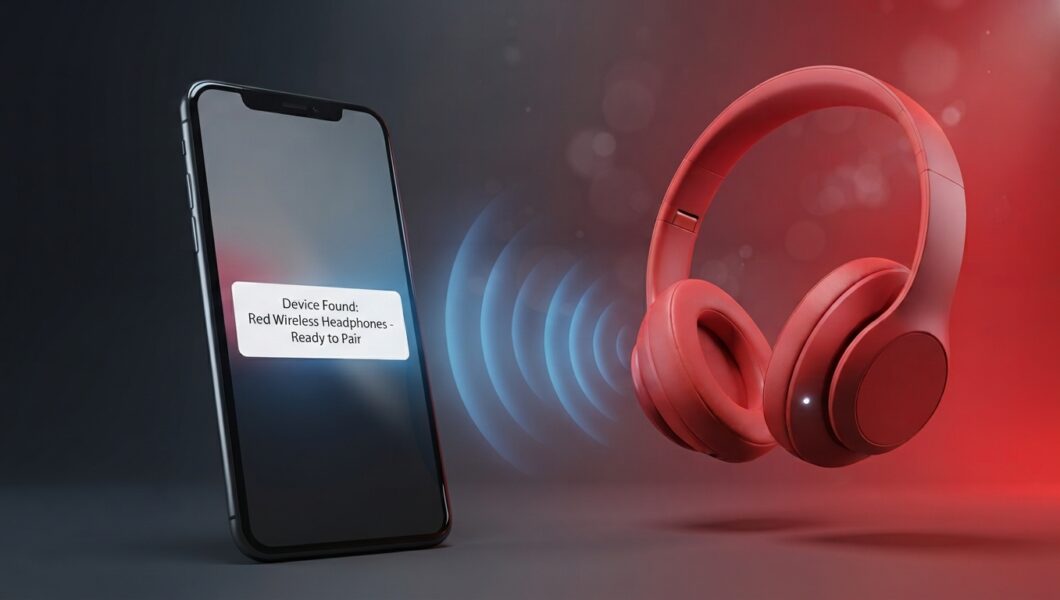
- For earbuds, open the charging case with the earbuds inside and hold it next to your iPhone or iPad. For headphones, turn them on and hold them next to your device.
- When the setup animation appears, follow the on-screen instructions.
Once you’ve set up your Beats on one Apple device, they’re automatically paired to your other devices that are signed in to the same Apple Account, so you can connect with just a tap.
Manual pairing: If you don’t see the animation, put your Beats in pairing mode (see the table above), then go to Settings > Bluetooth and tap your Beats in the list of devices.
Pair Beats With an Android Phone
Many Beats models support Google Fast Pair on Android, which makes setup quick.
Using the pop-up (Fast Pair):
- Open Settings > Connections and make sure Bluetooth is on. (Some phones may also ask you to turn on Location.)
- For earbuds, open the case with the earbuds inside and hold it near your phone. For headphones, turn them on and hold them near your phone.
- When the setup animation appears, follow the on-screen instructions.
If you don’t see the animation:
- Put your Beats in pairing mode, go to Settings > Connections > Bluetooth, tap your Beats in the list, then tap Pair.
- Or open the Beats app, tap the menu button, choose Connect Your Beats, and follow the steps.
The free Beats app for Android also lets you manage your Beats, including settings and updates.
Pair Beats With a Mac or Windows PC
On a Mac
- Click the Apple menu, open System Settings, and select Bluetooth in the sidebar.
- Make sure Bluetooth is on.
- Put your Beats in pairing mode. For earbuds, open the case next to your Mac and hold the system button until the light flashes white.
- Select your Beats in the device list and click Connect.
If you’ve already set up your Beats on an iPhone with the same Apple Account, they’re usually paired to your Mac automatically.
On Windows
- Open Settings and go to Bluetooth & devices.
- Make sure Bluetooth is on, then click Add device.
- Choose Bluetooth.
- With your Beats in pairing mode, select them from the list.
Windows may install a few drivers, which only takes a moment. If you hear no sound afterward, open your PC’s sound settings and choose your Beats as the playback device.
Pair Beats With Other Devices
Apple TV: Turn on your Beats, then press and hold the TV button on your Apple TV remote to open Control Center. Select the Audio Controls button, then choose your Beats.
Apple Watch: Put your Beats in pairing mode, open Settings > Bluetooth on your watch, and tap your Beats.
Smart TVs: Open the TV’s settings, look for Bluetooth or sound output options, and search for new devices while your Beats are in pairing mode. Not every TV supports Bluetooth headphones, so check your TV’s manual if you don’t see the option.
Game consoles: Many consoles don’t support standard Bluetooth headphones directly, so you may need a USB Bluetooth adapter or a wired connection. Check your console’s documentation first.
Troubleshooting: When Your Beats Won’t Pair
Work through these fixes in order.
- Check the basics. Make sure both your Beats and your device are charged and turned on, and that your phone or computer has the latest software.
- Move closer and reduce interference. Stay within 30 feet, and move away from wireless routers, microwaves, and other Bluetooth devices.
- Forget the device and pair again.
- On iPhone or iPad: Settings > Bluetooth, tap the info (i) button next to your Beats, then tap Forget This Device.
- On Mac: System Settings > Bluetooth, select your Beats, click the X, then choose Forget Device.
- On Android or Windows: open Bluetooth settings, select your Beats, and choose Unpair or Remove device.
- Reset your Beats. A reset clears glitches and old connections. The steps depend on your model:
| Model | How to reset |
|---|---|
| Beats Studio Pro | Press and hold the system button on the right earcup for 10 seconds, then release. |
| Beats Solo 4 | Press and hold the volume down button (left earcup) and the power button (right earcup) for 10 seconds. Release when the light flashes red and white. |
| Beats Fit Pro, Powerbeats Fit, Powerbeats Pro 2, Beats Studio Buds + | Put both earbuds in the case and leave the lid open. Press and hold the system button for 15 seconds, until the light flashes red and white. |
| Beats Solo Buds | Put both earbuds in the open case. Press and hold the button above the “b” logo on both earbuds for at least 10 seconds. |
| Beats Flex | Press and hold the volume button on the left control module and the power button on the right control module for 15 seconds. |
After a reset, pair your Beats again.
- Update your Beats. Outdated software can cause connection problems. Keep your phone’s operating system up to date, and on Android use the Beats app to manage updates.
If none of this works, contact Apple Support or Beats Support.
Tips for Faster Pairing Next Time
- Auto-connect: After the first pairing, your Beats usually reconnect on their own when you turn them on or put them on, as long as Bluetooth is enabled.
- Switching between Apple devices: If your devices use the same Apple Account, your Beats are already paired to all of them, so you just select them from the device you want to use.
- Switching on other devices: On non-Apple devices, you may need to select your Beats in the Bluetooth menu when you switch.
- Keep everything updated: Updates improve stability and can fix connection issues.
Frequently Asked Questions
How do I pair Beats with two devices?
Your Beats play audio from one device at a time, but they remember devices you’ve paired before. To switch, select your Beats in the Bluetooth menu of the device you want to use. Apple devices signed in to the same Apple Account make this easy, since your Beats are already paired to all of them.
Why does my Beats keep disconnecting?
Common causes include a low battery, outdated software, interference from other wireless devices, or being too far from your phone. Try charging your Beats, moving closer, updating your device, forgetting and re-pairing, and resetting your Beats. If the problem continues, contact Apple Support or Beats Support.
How do I check my Beats battery level?
When your Beats are connected to an iPhone, you can see their battery level on the screen or in the Batteries widget. On Android, the Beats app shows it. Light colors and charging indicators vary by model, so check your model’s guide in Beats Support for what each light means.
Do Beats work with Android phones?
Yes. Beats work with Android and with any device that supports standard Bluetooth audio. Many models support Google Fast Pair for one-tap setup, and the Beats app for Android adds extra controls.
Conclusion
Pairing Beats headphones really does take under a minute once you know the steps. Charge them, turn on Bluetooth, press and hold the right button until the light flashes (or a tone plays), and select your Beats on your device. On iPhone and Android, a single tap is often all it takes. If something goes wrong, forgetting the device and pairing again, or resetting your Beats, fixes most problems.
Now put your Beats on and enjoy the music.
O