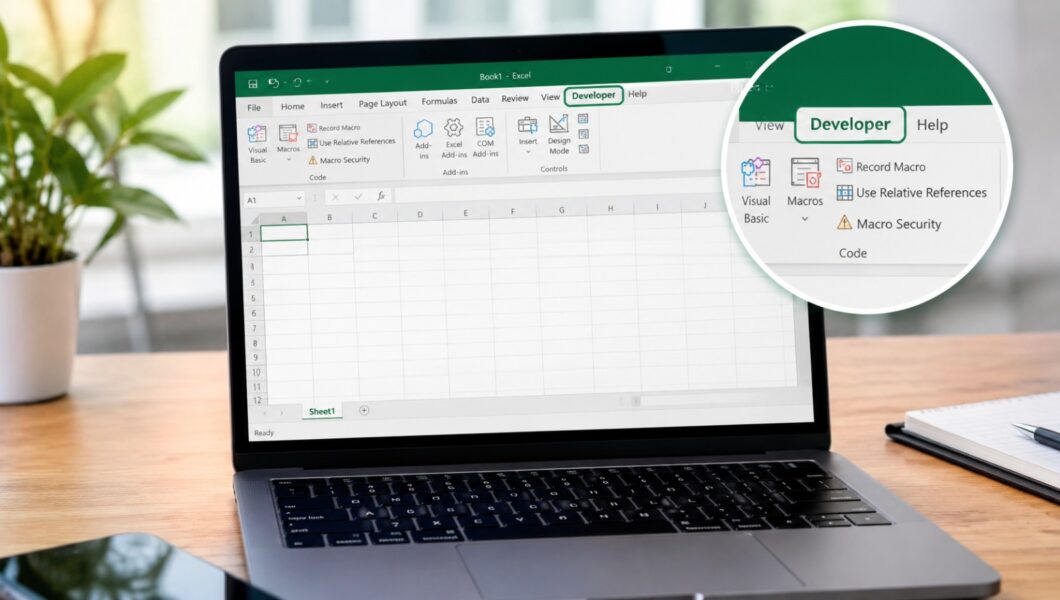
You followed a tutorial that says “go to the Developer tab,” but you can’t find it anywhere. Don’t worry. Excel hides this tab by default, and you can turn it on in under a minute. This guide shows you how to add the Developer tab in Excel on both Windows and Mac.
What Is the Developer Tab in Excel?
The Developer tab is a hidden tab on the Excel ribbon with advanced tools. Microsoft hides it because most people don’t need it for everyday work. Inside, you’ll find Visual Basic, Macros, form controls, and Add-ins.
How to Add the Developer Tab in Excel on Windows
Method 1: Through Excel Options
- Click File in the top left corner.
- Click Options at the bottom of the menu.
- Select Customize Ribbon on the left.
- Under Main Tabs on the right, tick the Developer box.
- Click OK.
The Developer tab now appears on your ribbon.
Method 2: Right-Click the Ribbon
Right-click any empty space on the ribbon, choose Customize the Ribbon, and tick Developer. This is the faster route.
This works in Excel 2010 and later, including Microsoft 365.
How to Add the Developer Tab in Excel on Mac
- Click Excel in the top menu bar.
- Choose Preferences (or Settings in newer versions).
- Click Ribbon & Toolbar.
- Under Main Tabs, tick Developer.
- Click Save.
Developer Tab Missing in Excel? Try These Fixes
- Check the right list. Make sure you ticked the box under Main Tabs, not Tool Tabs.
- Ask your IT team. On a work computer, an administrator may have blocked the tab.
- Restart Excel. Close it fully and open it again.
- Update Office. Old versions can have menu problems.
- Don’t use Excel Online. The web version doesn’t include the Developer tab. Use the desktop app.
What Can You Do With the Developer Tab?
Record and run macros. Say you format a weekly sales report the same way every Monday: bold headers, column widths, and colors. Record those steps once with Record Macro, then run them in one click each week.
Insert checkboxes, dropdowns, and buttons. Click Insert to add form controls. An office administrator can build a task tracker with checkboxes, or an attendance sheet with a dropdown for “Present,” “Absent,” and “Leave.”
Open the Visual Basic editor. Click Visual Basic to write or edit VBA code. You don’t need it at first, but it’s useful when you want to build custom automation.
Frequently Asked Questions
Is the Developer tab free?
Yes. It’s built into Excel, and you only need to switch it on.
Is it safe to enable?
Yes. Just run macros from trusted sources only, since macros from unknown files can contain harmful code.
Why can’t I find it in Excel Online?
The web version has limited features and doesn’t support the Developer tab.
Conclusion
Adding the Developer tab in Excel is simple. On Windows, go to File > Options > Customize Ribbon. On Mac, go to Excel > Preferences > Ribbon & Toolbar. Once it’s visible, try recording your first macro or adding a checkbox to a sheet. You’ll quickly see how much time it can save.